ANESE est un émulateur de Nintendo NES écrit en C++11 par Daniel.

0 commentaire



ANESE est un émulateur de Nintendo NES écrit en C++11 par Daniel.
Il s’agit d’un fork de DOSBox des plus intéressant, destiné à Windows Linux et MacOS et créé par Jon Campbell. Il possède une compatibilité excellente et met l’accent sur la précision d’émulation notamment en ce qui concerne l’émulation de Windows 3.x à ME. En outre il ajoute des améliorations en provenance d’autres builds comme DOSBox ECE avec l’émulation de la 3DFX en interne.

Les améliorations sont à consulter sur le site officiel.
Télécharger DOSBox-X (Hx DOS) v2026.10.01 (9.7 Mo)
Télécharger DOSBox-X (LowEnd) v2026.10.01 (19.6 Mo)
Télécharger DOSBox-X (MinGW) v2026.10.01 (24.1 Mo)
De nouveaux patchs sont disponibles sur le site de nos partenaire de chez la TRAF (et sur notre miroir), de quoi s’occuper de nombreuses heures 🙂

Créé par DH & Hykem (et rejoint par un ensemble de développeurs), RPCS3 est un émulateur de Playstation 3 multi-plateformes qui a pour objectif de devenir le plus complet possible. Il faisait principalement office de désassembleur mais pousse à présent la performance jusqu’à exécuter un certains nombres de jeux commerciaux devenant ainsi le premier émulateur de PS3 émulant des jeux du commerce, toutefois il nécessite un PC extrêmement performant.
En effet il vous faudra rien de moins qu’un CPU type core i7 @ 4Ghz (voir config minimale requise sur le site officiel), une carte graphique récente type nVidia GTX, de la mémoire haute performance type DDR4 ou encore un système d’exploitation récent pour espérer lancer des jeux dans un mode relativement fluide (mais attention cela dépend énormément des builds et des jeux).
Plusieurs rendus s’offre à vous: Aucun, OpenGL, DirectX12 (Windows 10 uniquement) et Vulkan (qui a pour but de remplacer à terme OpenGL et ses dérivés en exploitant plus efficacement les architectures informatiques modernes).
Au sujet du nom de l’émulateur, il s’agit d’une abréviation et d’une combinaison de Personal Computer (PC) et PlayStation 3 (PS3). PC + PS3 = PCS3.
Que signifie le R? DH et BlackDemon se souviennent qu’il représentait Real car en 2011, il n’y avait que de faux émulateurs de Ps3. Puis, à un moment donné, DH (originaire d’Ukraine) a commencé à dire que le R représentait le mot Russe. De plus, Nekotekina, qui a rejoint l’équipe fin 2013 et qui est rapidement devenu l’un des plus grands développeurs de cet émulateur, est originaire de Russie. Du coup RPCS3 signifie à présent Russian Personal Computer Station 3.

Cette version (qui n’est pas à considérer comme stable) qu’on nommera « point de repère » (landmarks) dans le sens ou elle est officiellement publiée sur le site officiel (ce qui change des builds régulier dit « WIP » ou « GIT »), n’est disponible que pour les processeurs 64 bits. Pas de changelog malheureusement.
What’s new since v0.0.11 (highlights):
– Implemented Online Netplay (sceNp) functionality!
– CPU many CPU emulation accuracy and performance improvements
– GPU many GPU emulation accuracy and performance improvements
– GUI many GUI bug fixes, improvements and additions
– Audio Implemented downmix to 5.1, made most audio settings modifiable mid game
– AVX-512 Added support and some optimized paths for Icelake AVX-512
– Debugger Simplification and usability improvements
– Input Added pad squircle, stick multipliers and stick emulation preview to Pad Settings
– Input Support for Namco GCon3 gun
– GPU Video memory management overhaul introduced to handle memory overload scenarios, when the GPU is almost out of memory multiple techniques are used to free as much resources as possible
– OpenGL Fixed an issue where around 20% of a shaders cache would be skipped on load when using the OpenGL render
– Overlay Fixed cropped text on overlay elements such as trophy pop-ups
Pour le détails, voir ici.
Version changes serve as landmarks and are by no means stable builds
This changelog lists the main (but not all) changes made since 0.0.X


Site officiel des sources et versions compilées (builds).
Il s’agit d’une interface très simplifiée destinée au projet Libretro (les cores qui composent Retroarch) et qui a été écrite en langage de programmation GO. Plus simple et rapide que l’interface de Retroarch (mais proposant moins d’options), elle sera satisfaire la plupart des utilisateurs.

La suite par Logic Sunrise:
En quoi Ludo est-il différent de RetroArch ?
Ludo restera plus petit que RetroArch en n’implémentant que les fonctionnalités de base et en ciblant moins de plates-formes.
En n’ajoutant pas de fonctionnalités avancées, nous visons à fournir un frontend stable pour les utilisateurs débutants sur Windows, Mac OSX et Linux.
Certains choix de conception sont différents, par exemple nous supportons moins de cores, et choisissons des cores pour l’utilisateur. Les cores sont intégrés dans le frontend, de sorte qu’aucune étape supplémentaire n’est nécessaire pour lancer un jeu.
En quoi Ludo est-il similaire à RetroArch ?
Comme RetroArch, Ludo est un frontend libretro, donc la façon de communiquer avec les émulateurs est la même. Mêmes cores, mêmes modèles d’interface utilisateur, interface utilisateur pilotée par le joypad, mêmes vignettes de jeu, essentiellement la même base de données de jeu, même terminologie. Ludo partage sans aucun doute les mêmes valeurs.
Pourquoi ne pas implémenter Ludo comme drivers dans RetroArch ?
Pour qu’un logiciel reste stable sur un certain nombre de plates-formes différentes, il est important de conserver une petite base de code avec une bonne couverture de test. Il est également important de ne pas introduire de changements à un rythme élevé.
RetroArch est un projet extrêmement actif et possède une base de code croissante qui rend la stabilité plus difficile à atteindre. De plus, RetroArch est un frontend très puissant et sophistiqué, et l’une des critiques les plus courantes est qu’il expose trop d’options de configuration pour le joueur rétro moyen.
Flycast est un émulateur multiplateforme de Sega Dreamcast, Naomi et Atomiswave qui est basé sur Reicast. Informations ici.

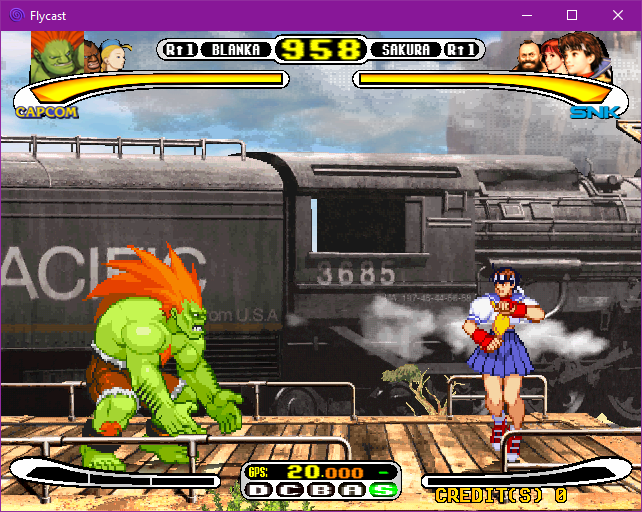

Il prend en charge les jeux aux formats suivants:
– SEGA Dreamcast (CHD, CDI, GDI, CUE)
– SEGA Dreamcast utilisant WinCE
– SEGA NAOMI (.zip, .7z, .dat/.lst)
– SEGA NAOMI GD-ROM (.zip, .7z, .dat/.lst et .chd)
– Sammy Atomiswave (.zip, .7z)
Il ne prend pas encore en charge les jeux SEGA NAOMI 2, Hikaru et SEGA System SP.
Des packs de textures sont disponibles ici.

Il s’agit d’un émulateur de PlayStation One.
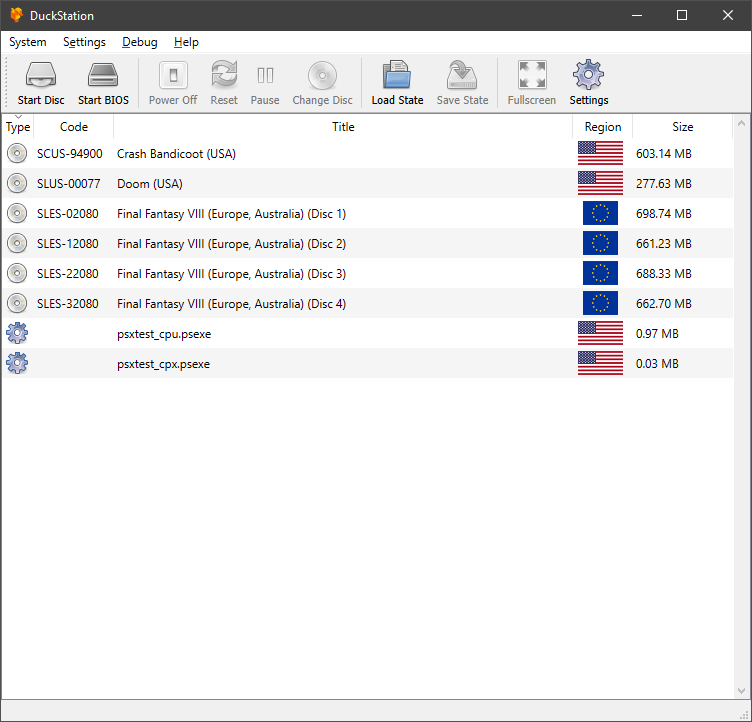
Caractéristiques:
– CPU Recompiler/JIT (x86-64 and AArch64)
– Hardware (D3D11 and OpenGL) and software rendering
– Upscaling and true colour (24-bit) in hardware renderers
– « Fast boot » for skipping BIOS splash/intro
– Save state support
– Windows and Linux support – macOS may work, but not actively maintained
– Supports bin/cue images, raw bin/img files, and MAME CMD formats.
– Direct booting of homebrew executables
– Digital and analog controllers for input (rumble is forwarded to host)
– Qt and SDL frontends for desktop
– Qt frontend has graphical configuration, and controller binding
– Automatic content scanning – game titles/regions are provided by redump.org
Configuration requise:
– A CPU faster than a potato.
– For the hardware renderers, a GPU capable of OpenGL 3.0/OpenGL ES 3.0/Direct3D 11 Feature Level 10.0 and above. So, basically anything made in the last 10 years or so.
– SDL-compatible game controller (e.g. XB360/XBOne)
Il s’agit d’un émulateur de MSX/MSX2/MSX2+ créé par le grand Marat Fayzullin dont cette dernière version est enfin disponible gratuitement (ce qui ne fut pas le cas pendant des années).

– Will try opening tapes as read-only, if read-and-append fails.
– System ROM files location now defaults to where executable is.
– Fixed SHA1 computation when guessing MegaROM mapper type.
– ASCII16 mapper now preferred over ASCII8 when guess MegaROM type.
– Changed R-Type mapper type to ASCII16.
– Changed DragonQuest 1 mapper type to GENERIC8.
– Changed Animal mapper type to GENERIC8.
– Changed T&E Soft Ashguine mapper type to GENERIC8.
– Changed Royal Blood mapper type to ASCII8.
– Refactored scaling and special effects framework.
– Optimized scaling for large screens and windows.
– Fixed fMSX-Windows behavior with multiple displays.
– Added tape option to « File | Open » dialog in fMSX-Windows.
– Added « Video | Interpolate Video | Linear Scaling » option to fMSX-Windows.
– Enabled « Video | Stretch Full Screen » option with effects enabled.
– Enabled « Video | Force 4:3 Screen » option with effects enabled.
Hoxs64 est un émulateur Commodore 64 tournant sous Windows avec DirectX 9 au minimum. Il est encore en développement, si bien que s’il manque quelques choses maintenant, elle sera là plus tard (dixit l’auteur) 😉


1) issue #4: cartridge system 3 fix plus other related cartridge register
address comparison fixes.
2) Corrected DirectX pixel sampler mode from D3D11_TEXTURE_ADDRESS_WRAP to
use D3D11_TEXTURE_ADDRESS_CLAMP to fix graphical artifacts seen at the
boundaries of the display area.
Télécharger Hoxs64 (x86) v1.1.2.9 (4.4 Mo)
Télécharger Hoxs64 (x64) v1.1.2.9 (5.1 Mo)
Télécharger Hoxs64 (9X/2K) v1.0.23 (503 Ko)
Télécharger Hoxs64 Français (9X/2K) v1.0.23 (542 Ko)
Télécharger Hoxs64 Français (x86) v1.1.2.9 (3.7 Mo)
WineD3D For Windows est un wrapper DirectX 1-11 vers OpenGL basé sur WineD3D, qui est une implémentation presque complète de DirectX utilisée dans Wine.
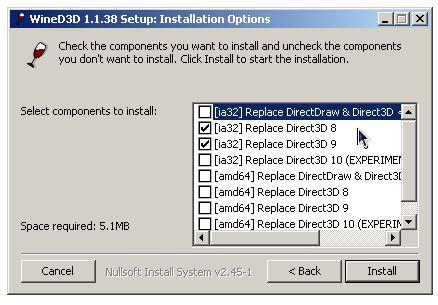
Même si Windows prend en charge DirectX de manière native, l’utilisation de WineD3D peut améliorer la compatibilité avec les jeux plus anciens, en particulier sur Windows 8 et supérieurs qui ne prennent pas en charge les modes d’écran 16 bits. Une autre utilisation possible est d’imiter les versions non prises en charge de DirectX ou de transférer des applications DirectX vers OpenGL sans avoir à réécrire le code de rendu.
Notez que WineD3D est loin d’être parfait, et de nombreux jeux ne fonctionneront pas.
Des instructions sur l’utilisation des DLL sont également incluses.
Version 1.7.x fonctionne à partir de Windows 2000.
Version 2.x fonctionne à partir de Windows Vista.

Télécharger Wine D3D For Windows (Win 2K et +) v1.7.52 (1.7 Mo)
Télécharger Wine D3D For Windows (32 Bits | Win8 et +) v11.20 (1.9 Mo)
Télécharger Wine D3D For Windows (64 Bits | Win8 et +) v11.20 (1.9 Mo)
Ootake est un émulateur PC-Engine en provenance du Japon et basé sur PC2E, tournant sous Windows 2000, XP, Vista, 7, 8 et 10. Il nécessite Direct X v9.0c au minimum.

– Fixed the problem that the tempo of sound sometimes became fast for a few
seconds immediately after opening a ROM image file when using the display
refresh rate of 120Hz.
– It supported the operation with the display setting of refresh rate 240Hz.
If the display setting of the Windows desktop is set to 240Hz, Ootake will
also automatically operate at 240Hz. * At window mode
+ Operation at 240Hz significantly reduces the time it takes for the Windows
desktop to refresh the screen (overlap the desktop with the screens of
Ootake and other applications and draw at a non-flickering timing).
Therefore, the operation delay when playing with Ootake is reduced and it
is very close to the feeling of the actual machine.
+ When using a 144Hz display, V-Sync does not work and the screen may wavy
when scrolling, so I recommend setting to 120Hz and playing.
– It also supports operation at refresh rates of 180Hz, 300Hz and 360Hz.
* I haven’t tested it because I don’t have a display of 300Hz or higher,
but I think it’s ok. If you have any problems, please let me know.
– « Full Screen 180Hz » and « Full Screen 240Hz » were added to the « Screen ->
FullScreen Customize » menu. By default, it switches to 60Hz in FullScreen.
If you have a display of 120Hz or more, you can play with low latency by
setting here. If you have a display of 300Hz or higher faster than 240Hz,
select « Full Screen 240Hz » (Ootake is optimized for 240Hz operation, so
240Hz operation is the best operation).
– « MaxSize » was added to the « Screen » menu when playing in full screen. You
can make the « game display screen » smaller even when playing in full
screen. It can also be set by holding down [Alt] on the keyboard and
pressing [1] to [5].
* When playing close to the display (most PCs think so), I think it’s often
easier to play with a size smaller than the full size screen. This is
because there is little movement of the field of view, and in the case of
a retro game, the coarseness of expansion is not noticeable and the image
quality is good.
* In Windows 8 or later, full screen mode has about 1 frame less delay than
window mode. Therefore, it is also recommended to play in full screen mode
in shooting games. In addition, when playing on a liquid crystal display
of 240Hz or higher, you can play with low latency close to full screen
even in window mode.
– Full screen selection The default resolution has been adapted to recent
PCs (wide display). [640×480, 800×600, 1024×768, 1366×768, 1920×1080,
1920×1200]
– « Same Desktop (same resolution as the desktop) » has been added to the
selected resolution of full screen. * Depending on the display, selecting
the same resolution as the desktop (1920×1080 for a full HD LCD display)
will reduce the display lag.
– The aspect ratio of the game screen has been finely adjusted to bring it
closer to the actual ratio. Also, the aspect ratio of the window is kept
at 4:3 even when the overscan area is displayed ([F12]key).
– Added the SELECT button auto-fire function (« Input -> TurboButton SELECT »
menu).
– On the key config screen (black screen during key reception), described
the precautions when connecting the game pad (when connecting the game
pad, it is necessary to close this « black screen during key reception »
once).
– The operation speed when accessing the video chip (VDC) has been made
closer to the operation of the actual machine. The problem (occurred in
recent versions) that the audience at the bottom edge was not displayed
on the screen at the start of the « Wonder Momo » stage (purple curtain)
has been resolved.
– The sprite display processing part has been made closer to the operation
of the actual machine. The problem (generated from v2.92) that the
background of the continue screen of « Dragon Slayer Eiyuu Densetsu » is
disturbed has been resolved.
– Move the operation speed and timing closer to the actual operation. Solved
the problem that raster processing was disturbed (occurred in recent
versions) in the demo of « Spriggan mk2 » when starting the 8th stage.
– When « Private Eyedol » is started with « no arcade card », there is a bug
(planned to be fixed) that it will stop in the raft puzzle scene in the
cave. So, Ootake will boot it with the arcade card (extended RAM) enabled.
– The ROM image file of the BIOS is the same (exactly the same) in both
« Super System Card 3.0 » and « Arcade Card Pro », so in Ootake the arcade
card compatible software also works with the ROM image of « Super System
Card 3.0 ». (Operates with virtual RAM)
– Fixed the horizontal display start position determination process of the
screen. In « Shogi Shoshinsha Muyou », the problem that the game screen was
shifted to the left was solved.
– Fixed a bug in which the system message displayed on the upper left of the
Ootake screen might remain when playing a game using a horizontal 512 dot
resolution.
– In a screen mode game such as « Tokimeki Memorial » in which the effective
range of 348 dots is horizontal, if the left and right overscan areas are
set to be displayed, the same color band as the actual machine is
displayed (v2.91 Same processing as before).
– Solved the problem that the display at the bottom of the screen was
sometimes distorted when the RUN button was pressed on the player count
setting screen in « Downtown Nekketsu Monogatari ». (In this scene, the CD
access speed has been reduced to the level of the actual machine).
– When the « PC Engine Mouse » is connected, Ootake is automatically paused
when the focus of Windows shifts to another application. (To prevent the
mouse cursor from getting lost)
– The default setting of the « Remove Lag » setting in the « Screen » menu (a
function to skip the extra screen buffer and reduce the delay) has been
changed to 1F(1 frame). * With the recent PC & driver, the same effect can
be obtained with 1F without setting 3F. (And the processing does not
become heavy)
– « Overscan Height 5dot » and « Overscan Height 3dot » have been added to the
« Screen->Overscan Customize » menu.
– Other minor details have been fixed and improved.
Il s’agit d’un émulateur multi-systèmes émulant les consoles NES, SuperNes, Sega Master System, SG-1000, Sega Game Gear, PC-Engine (TurboGrafx-16) / CD-ROM, SuperGrafx, Sega Genesis, Gameboy/Color, Atari 2600, Atari 7800 mais aussi TI-83 Calculator ou le Commodore 64.
Bizhawk utilise des fonctions d’enregistrement vidéo et est relié au projet TasVideo.
La version 2 n’est utilisable qu’avec Windows 7 ou supérieur et en version 64 bits uniquement. L’autre version est valable pour les systèmes 32 bits à partir de XP. La liste des pré-requis est disponible ici.

Les changements sont visibles ici et là.
Télécharger BizHawk (x86) (XP/Vista) v1.13.2 (25.3 Mo)