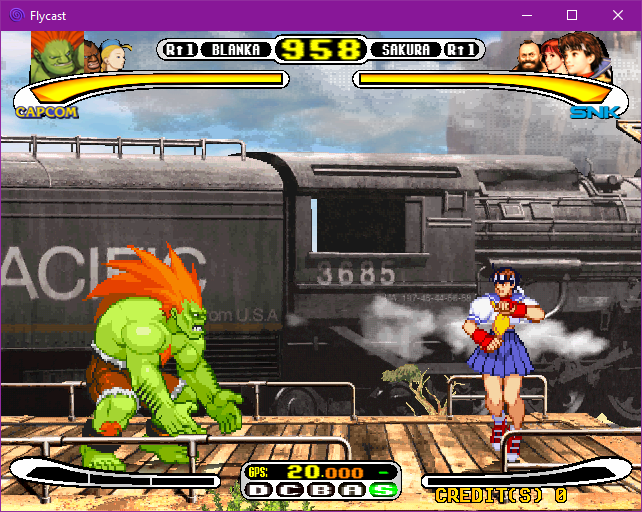
Flycast est un émulateur multiplateforme de Sega Dreamcast, Naomi et Atomiswave qui est basé sur Reicast. Informations ici.


Il prend en charge les jeux aux formats suivants:
– SEGA Dreamcast (CHD, CDI, GDI, CUE)
– SEGA Dreamcast utilisant WinCE
– SEGA NAOMI (.zip, .7z, .dat/.lst)
– SEGA NAOMI GD-ROM (.zip, .7z, .dat/.lst et .chd)
– Sammy Atomiswave (.zip, .7z)
 

Il ne prend pas encore en charge les jeux SEGA NAOMI 2, Hikaru et SEGA System SP.
 

Des packs de textures sont disponibles ici.


Builds automatiques (debug).
 

Télécharger Flycast v2.7 (9.4 Mo)

Site Officiel

En savoir plus…

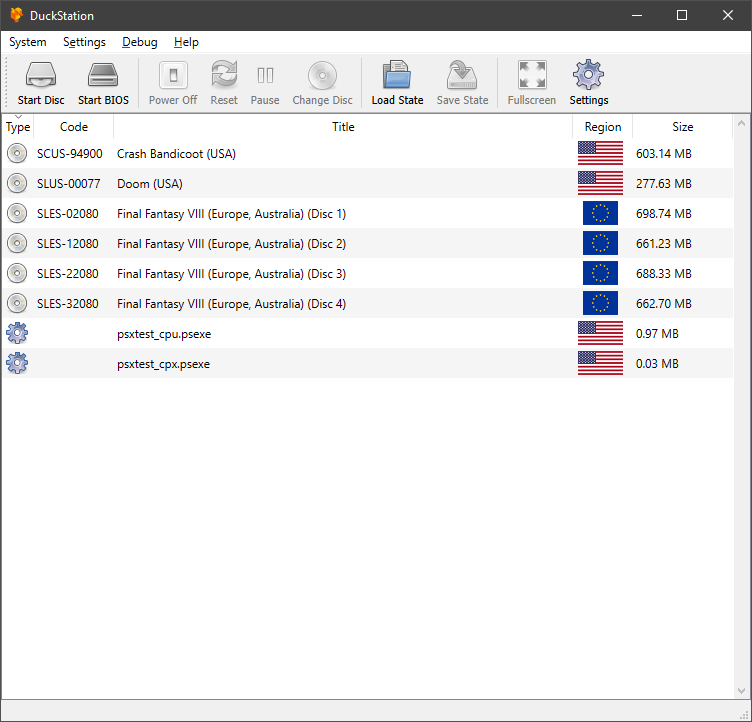
Il s’agit d’un émulateur de PlayStation One.


Caractéristiques:
– CPU Recompiler/JIT (x86-64 and AArch64)
– Hardware (D3D11 and OpenGL) and software rendering
– Upscaling and true colour (24-bit) in hardware renderers
– « Fast boot » for skipping BIOS splash/intro
– Save state support
– Windows and Linux support – macOS may work, but not actively maintained
– Supports bin/cue images, raw bin/img files, and MAME CMD formats.
– Direct booting of homebrew executables
– Digital and analog controllers for input (rumble is forwarded to host)
– Qt and SDL frontends for desktop
– Qt frontend has graphical configuration, and controller binding
– Automatic content scanning – game titles/regions are provided by redump.org

 
Configuration requise:
– A CPU faster than a potato.
– For the hardware renderers, a GPU capable of OpenGL 3.0/OpenGL ES 3.0/Direct3D 11 Feature Level 10.0 and above. So, basically anything made in the last 10 years or so.
– SDL-compatible game controller (e.g. XB360/XBOne)


Télécharger DuckStation v0.1 build 12XXX (71.6 Mo)

Site Officiel

En savoir plus…

Il s’agit d’un émulateur de MSX/MSX2/MSX2+ créé par le grand Marat Fayzullin dont cette dernière version est enfin disponible gratuitement (ce qui ne fut pas le cas pendant des années).


– Will try opening tapes as read-only, if read-and-append fails.
– System ROM files location now defaults to where executable is.
– Fixed SHA1 computation when guessing MegaROM mapper type.
– ASCII16 mapper now preferred over ASCII8 when guess MegaROM type.
– Changed R-Type mapper type to ASCII16.
– Changed DragonQuest 1 mapper type to GENERIC8.
– Changed Animal mapper type to GENERIC8.
– Changed T&E Soft Ashguine mapper type to GENERIC8.
– Changed Royal Blood mapper type to ASCII8.
– Refactored scaling and special effects framework.
– Optimized scaling for large screens and windows.
– Fixed fMSX-Windows behavior with multiple displays.
– Added tape option to « File | Open » dialog in fMSX-Windows.
– Added « Video | Interpolate Video | Linear Scaling » option to fMSX-Windows.
– Enabled « Video | Stretch Full Screen » option with effects enabled.
– Enabled « Video | Force 4:3 Screen » option with effects enabled.


Télécharger fMSX (Windows) v6.0 (380 Ko)

Site Officiel

En savoir plus…

Hoxs64 est un émulateur Commodore 64 tournant sous Windows avec DirectX 9 au minimum. Il est encore en développement, si bien que s’il manque quelques choses maintenant, elle sera là plus tard (dixit l’auteur) 😉
 
hoxs1
hoxs2
 

1) issue #4: cartridge system 3 fix plus other related cartridge register
address comparison fixes.

2) Corrected DirectX pixel sampler mode from D3D11_TEXTURE_ADDRESS_WRAP to
use D3D11_TEXTURE_ADDRESS_CLAMP to fix graphical artifacts seen at the
boundaries of the display area.


Télécharger Hoxs64 (x86) v1.1.2.9 (4.4 Mo)

Télécharger Hoxs64 (x64) v1.1.2.9 (5.1 Mo)

Télécharger Hoxs64 (9X/2K) v1.0.23 (503 Ko)

Télécharger Hoxs64 Français (9X/2K) v1.0.23 (542 Ko)

Télécharger Hoxs64 Français (x86) v1.1.2.9 (3.7 Mo)

Télécharger Hoxs64 Français (x64) v1.1.2.9 (3.7 Mo)

Site Officiel

En savoir plus…

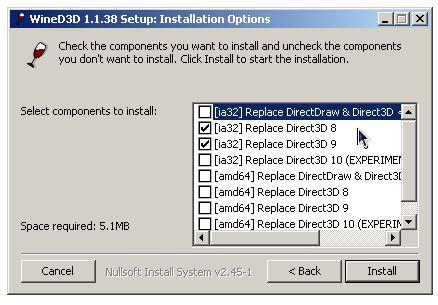
WineD3D For Windows est un wrapper DirectX 1-11 vers OpenGL basé sur WineD3D, qui est une implémentation presque complète de DirectX utilisée dans Wine.


Même si Windows prend en charge DirectX de manière native, l’utilisation de WineD3D peut améliorer la compatibilité avec les jeux plus anciens, en particulier sur Windows 8 et supérieurs qui ne prennent pas en charge les modes d’écran 16 bits. Une autre utilisation possible est d’imiter les versions non prises en charge de DirectX ou de transférer des applications DirectX vers OpenGL sans avoir à réécrire le code de rendu.
Notez que WineD3D est loin d’être parfait, et de nombreux jeux ne fonctionneront pas.
 
Des instructions sur l’utilisation des DLL sont également incluses.
 
Version 1.7.x fonctionne à partir de Windows 2000.
Version 2.x fonctionne à partir de Windows Vista.


Télécharger Wine D3D For Windows (Win 2K et +) v1.7.52 (1.7 Mo)

Télécharger Wine D3D For Windows (32 Bits | Win8 et +) v11.20 (1.9 Mo)

Télécharger Wine D3D For Windows (64 Bits | Win8 et +) v11.20 (1.9 Mo)

Site Officiel

En savoir plus…

Ootake est un émulateur PC-Engine en provenance du Japon et basé sur PC2E, tournant sous Windows 2000, XP, Vista, 7, 8 et 10. Il nécessite Direct X v9.0c au minimum.
 
ootake
 
– Fixed the problem that the tempo of sound sometimes became fast for a few
seconds immediately after opening a ROM image file when using the display
refresh rate of 120Hz.
– It supported the operation with the display setting of refresh rate 240Hz.
If the display setting of the Windows desktop is set to 240Hz, Ootake will
also automatically operate at 240Hz. * At window mode
+ Operation at 240Hz significantly reduces the time it takes for the Windows
desktop to refresh the screen (overlap the desktop with the screens of
Ootake and other applications and draw at a non-flickering timing).
Therefore, the operation delay when playing with Ootake is reduced and it
is very close to the feeling of the actual machine.
+ When using a 144Hz display, V-Sync does not work and the screen may wavy
when scrolling, so I recommend setting to 120Hz and playing.
– It also supports operation at refresh rates of 180Hz, 300Hz and 360Hz.
* I haven’t tested it because I don’t have a display of 300Hz or higher,
but I think it’s ok. If you have any problems, please let me know.
– « Full Screen 180Hz » and « Full Screen 240Hz » were added to the « Screen ->
FullScreen Customize » menu. By default, it switches to 60Hz in FullScreen.
If you have a display of 120Hz or more, you can play with low latency by
setting here. If you have a display of 300Hz or higher faster than 240Hz,
select « Full Screen 240Hz » (Ootake is optimized for 240Hz operation, so
240Hz operation is the best operation).
– « MaxSize » was added to the « Screen » menu when playing in full screen. You
can make the « game display screen » smaller even when playing in full
screen. It can also be set by holding down [Alt] on the keyboard and
pressing [1] to [5].
* When playing close to the display (most PCs think so), I think it’s often
easier to play with a size smaller than the full size screen. This is
because there is little movement of the field of view, and in the case of
a retro game, the coarseness of expansion is not noticeable and the image
quality is good.
* In Windows 8 or later, full screen mode has about 1 frame less delay than
window mode. Therefore, it is also recommended to play in full screen mode
in shooting games. In addition, when playing on a liquid crystal display
of 240Hz or higher, you can play with low latency close to full screen
even in window mode.
– Full screen selection The default resolution has been adapted to recent
PCs (wide display). [640×480, 800×600, 1024×768, 1366×768, 1920×1080,
1920×1200]
– « Same Desktop (same resolution as the desktop) » has been added to the
selected resolution of full screen. * Depending on the display, selecting
the same resolution as the desktop (1920×1080 for a full HD LCD display)
will reduce the display lag.
– The aspect ratio of the game screen has been finely adjusted to bring it
closer to the actual ratio. Also, the aspect ratio of the window is kept
at 4:3 even when the overscan area is displayed ([F12]key).
– Added the SELECT button auto-fire function (« Input -> TurboButton SELECT »
menu).
– On the key config screen (black screen during key reception), described
the precautions when connecting the game pad (when connecting the game
pad, it is necessary to close this « black screen during key reception »
once).
– The operation speed when accessing the video chip (VDC) has been made
closer to the operation of the actual machine. The problem (occurred in
recent versions) that the audience at the bottom edge was not displayed
on the screen at the start of the « Wonder Momo » stage (purple curtain)
has been resolved.
– The sprite display processing part has been made closer to the operation
of the actual machine. The problem (generated from v2.92) that the
background of the continue screen of « Dragon Slayer Eiyuu Densetsu » is
disturbed has been resolved.
– Move the operation speed and timing closer to the actual operation. Solved
the problem that raster processing was disturbed (occurred in recent
versions) in the demo of « Spriggan mk2 » when starting the 8th stage.
– When « Private Eyedol » is started with « no arcade card », there is a bug
(planned to be fixed) that it will stop in the raft puzzle scene in the
cave. So, Ootake will boot it with the arcade card (extended RAM) enabled.
– The ROM image file of the BIOS is the same (exactly the same) in both
« Super System Card 3.0 » and « Arcade Card Pro », so in Ootake the arcade
card compatible software also works with the ROM image of « Super System
Card 3.0 ». (Operates with virtual RAM)
– Fixed the horizontal display start position determination process of the
screen. In « Shogi Shoshinsha Muyou », the problem that the game screen was
shifted to the left was solved.
– Fixed a bug in which the system message displayed on the upper left of the
Ootake screen might remain when playing a game using a horizontal 512 dot
resolution.
– In a screen mode game such as « Tokimeki Memorial » in which the effective
range of 348 dots is horizontal, if the left and right overscan areas are
set to be displayed, the same color band as the actual machine is
displayed (v2.91 Same processing as before).
– Solved the problem that the display at the bottom of the screen was
sometimes distorted when the RUN button was pressed on the player count
setting screen in « Downtown Nekketsu Monogatari ». (In this scene, the CD
access speed has been reduced to the level of the actual machine).
– When the « PC Engine Mouse » is connected, Ootake is automatically paused
when the focus of Windows shifts to another application. (To prevent the
mouse cursor from getting lost)
– The default setting of the « Remove Lag » setting in the « Screen » menu (a
function to skip the extra screen buffer and reduce the delay) has been
changed to 1F(1 frame). * With the recent PC & driver, the same effect can
be obtained with 1F without setting 3F. (And the processing does not
become heavy)
– « Overscan Height 5dot » and « Overscan Height 3dot » have been added to the
« Screen->Overscan Customize » menu.
– Other minor details have been fixed and improved.


Télécharger Ootake (2K/XP/Vista/7/8/10/11) v3.06 (1.4 Mo)

Site Officiel

En savoir plus…

Il s’agit d’un émulateur multi-systèmes émulant les consoles NES, SuperNes, Sega Master System, SG-1000, Sega Game Gear, PC-Engine (TurboGrafx-16) / CD-ROM, SuperGrafx, Sega Genesis, Gameboy/Color, Atari 2600, Atari 7800 mais aussi TI-83 Calculator ou le Commodore 64.
 
Bizhawk utilise des fonctions d’enregistrement vidéo et est relié au projet TasVideo.

 
La version 2 n’est utilisable qu’avec Windows 7 ou supérieur et en version 64 bits uniquement. L’autre version est valable pour les systèmes 32 bits à partir de XP. La liste des pré-requis est disponible ici.
 

Source alternative


biz
 
Les changements sont visibles ici et là.


Télécharger BizHawk (x86) (XP/Vista) v1.13.2 (25.3 Mo)

Télécharger BizHawk (x64) v2.11.1 (93.4 Mo)

Site Officiel

En savoir plus…

DS4Windows est un programme portable qui vous permet d’obtenir la meilleure expérience lors de l’utilisation d’un DualShock 4 sur votre PC, en émulant un contrôleur Xbox 360, beaucoup de jeux deviennent alors accessibles.
 

– Fixed ‘index out of bounds’ error for localization string when default profile is not found. Contribution by mika-n
– Updated build script to bundle newer translation packs
– Updated Spanish translation. Contribution by peter9811


Télécharger DS4Windows (original) (x86) v3.3.3 (2.6 Mo)

Télécharger DS4Windows (original) (x64) v3.3.3 (2.6 Mo)

Site Officiel

En savoir plus…

SNES SPC700 Player est un lecteur SPC permettant de lire des fichiers musicaux Super NES (SPC) sur votre ordinateur.


Il est basé sur SNESAPU.DLL v2.0, qui a une reproductibilité et une qualité sonore bien établies, et intègre certaines des dernières fonctions de la version v3.0 et des extensions originales.


Télécharger SPCPlay v2.21.2 (build 8822) (116 Ko)

Site Officiel

En savoir plus…

Un très bon émulateur de TI-99/4A tournant sous Windows. Il fut connu sous le nom d’AMI99, mais fut renommé car beaucoup de personnes pensaient qu’il s’agissait d’un émulateur Commodore Amiga.
 

classicti99classicti991

 
Les fonctionnalités :
– Les roms systèmes & plusieurs cartouches sont inclues sous licence Texas Instruments
– Démarre et fait fonctionner correctement toutes les fonctions OS (excepté l’I/O et le TI BASIC,
– La plupart des modules fonctionnent très bien
– Le switch des cartouches XB/Atarisoft/Jon379/SuperSpace cartridge est supporté
– Emulation complète du son sur tous les channels, en incluant le support du son digitalisé
– Speech implémenté à la fois sur les roms et sur le speak externe.
– Le scan CRU du clavier est implémenté
– Support du joystick et du timer 9901
– Le disque supporte les fichiers V9T9, TIFILES/Xmodem, les fichies natifs Windows, les images disque V9T9 DSK & PC99 DSK (les images DSK sont en lecture seule)
– DirectX fenetré et plein écran, comme les modes fenétrés non-DirectX
– Détection des collisions (par pattern)
– Nombreux filtres vidéos en option (HQ4X, 2xSAI, SuperEagle, NTSC, etc)
– Débugger intégré en single step
– Emulation clavier PS/2 keyboard
– Sélection des menus par souris (double-cliquer sur l’écran)
– Support de la carte 1MB Super AMS
– Code source complet inclus
– Etc.
 
Après la v3.99.4, le système d’incrémentation des versions à changé, on en ignore la justification.
 

Télécharger Classic99 v399.086 (35.5 Mo)

Site Officiel

En savoir plus…

Les builds 32 bits de MAME compatibles XP et compilés par StHiryu sont à présent disponibles.


Télécharger MAME (XP) v0.289 (64.6 Mo)

Télécharger MAME(MESS) [32 bits] v0.289 (42.5 Mo)

Télécharger MESSUI (32 bits) v0.288.4 (28.3 Mo)

Télécharger MAMEUI32 v0.289.5 (63.2 Mo)

Télécharger HBMame (32 bits) v0.289.4 (18.5 Mo)

Télécharger HBMame GUI (32 bits) v0.289.4 (18.7 Mo)

Télécharger ARCADE (32 bits) v0.289.5 (33.6 Mo)

Page Officielle


Je rajoute le binaire de MAME en version Arcade uniquement, compilé par moi-même:

Télécharger MAME(Arcade) [32 bits] v0.289 (75.2 Mo)


SSE pour « Steven Seagal Edition » est un émulateur d’Atari ST basé sur le STeem original v3.2 de 2004. Il emprunte également des améliorations en provenance de Hatari.


R17
Fix Disk manager Get contents for archives handled by ArchiveAccess (such as 7z)


Télécharger Steem SSE (D3D) [32 bits] v4.2.1 R2 (6.1 Mo)

Télécharger Steem SSE (D3D) [64 Bits] v4.2.1 R2 (6.9 Mo)

Site Officiel

En savoir plus…


https://getourbonus.com/fr/accueil

https://www.romspedia.com/